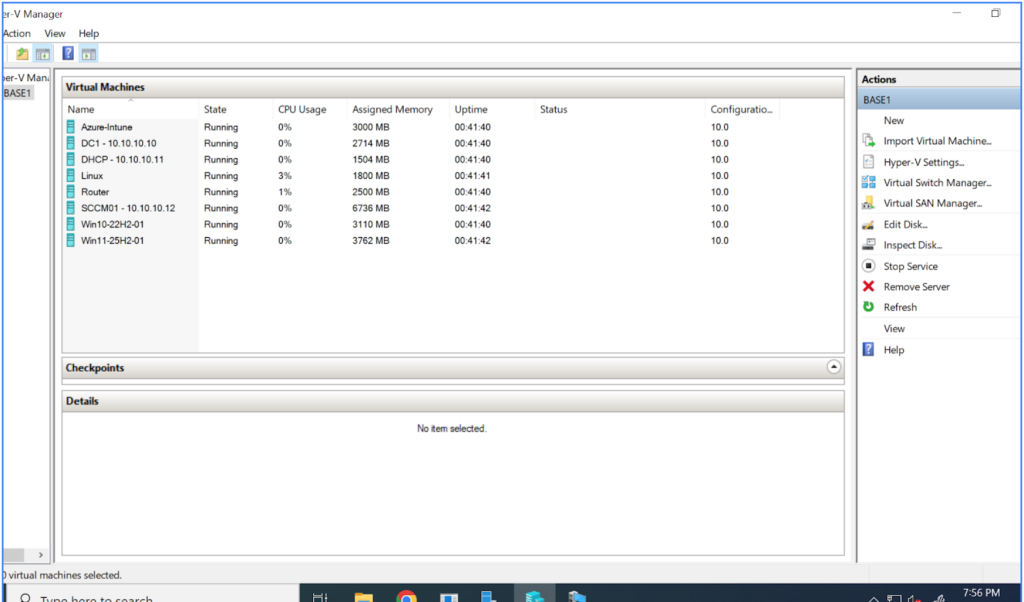
This screenshot shows Microsoft Hyper-V Manager running on a Windows Server
host named BASE1. It shows several virtual machines (VMs) that are turned on
and currently running.
Lab Description
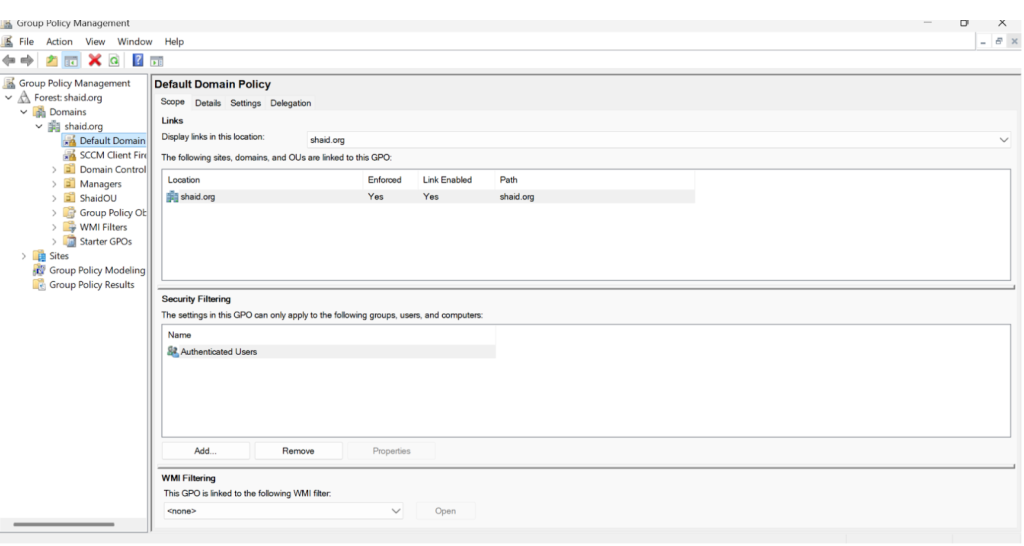
This is the Group Policy Management window in Windows Server. It is showing the Default Domain Policy for the domain called shaid.org. This policy applies to all authenticated users and computers in the domain. It is enforced, which means other lower policies cannot override it.
.
Lab Description
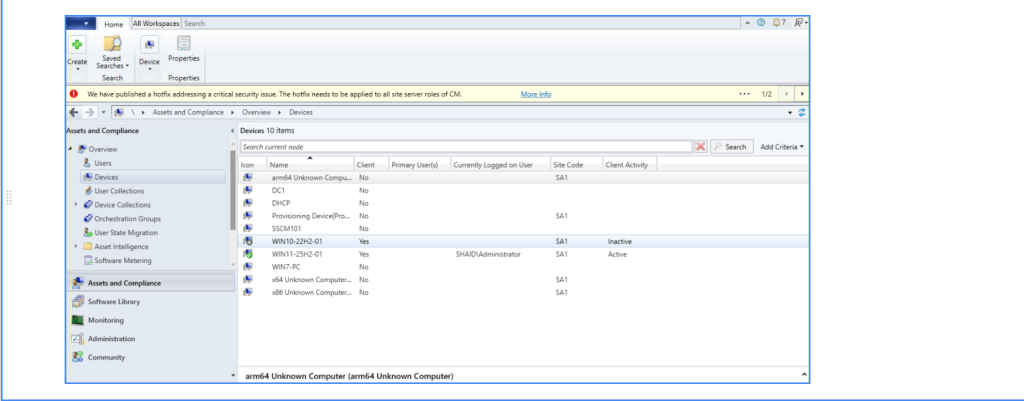
This screenshot shows the Microsoft Endpoint Configuration Manager (SCCM) console under Assets and Compliance → Devices. It displays a list of computers in the environment, including servers and Windows client machines. The console shows important details such as client installation status, site code, and device activity. This confirms that the devices in the lab are successfully discovered and managed through SCCM.
Lab Description
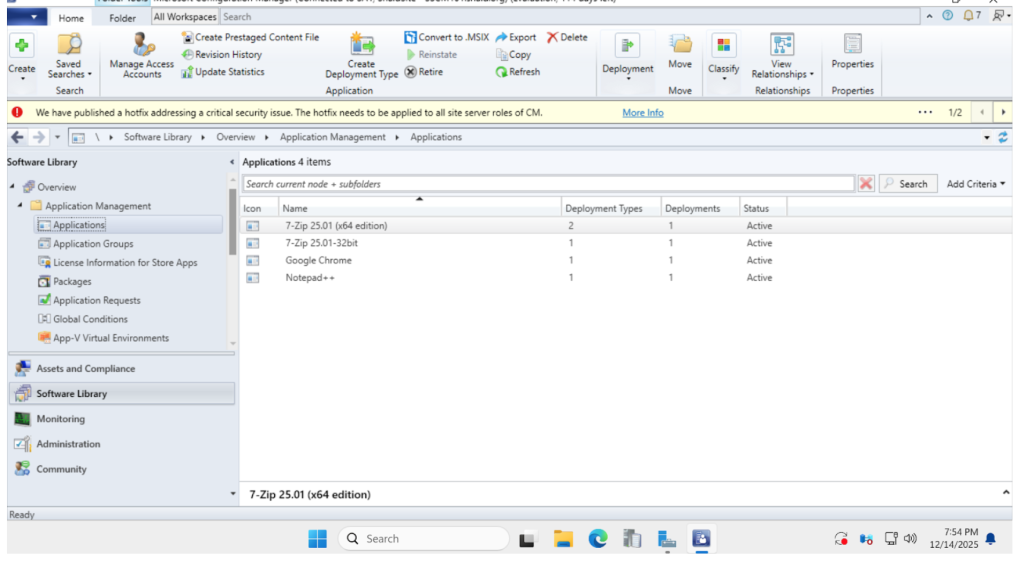
This screenshot shows the SCCM console in the Applications section. It lists software like 7-Zip, Google Chrome, and Notepad++ that have been added to the system. The status shows the applications are active and ready to install on computers. This shows experience in adding and deploying software using SCCM.
Lab Description
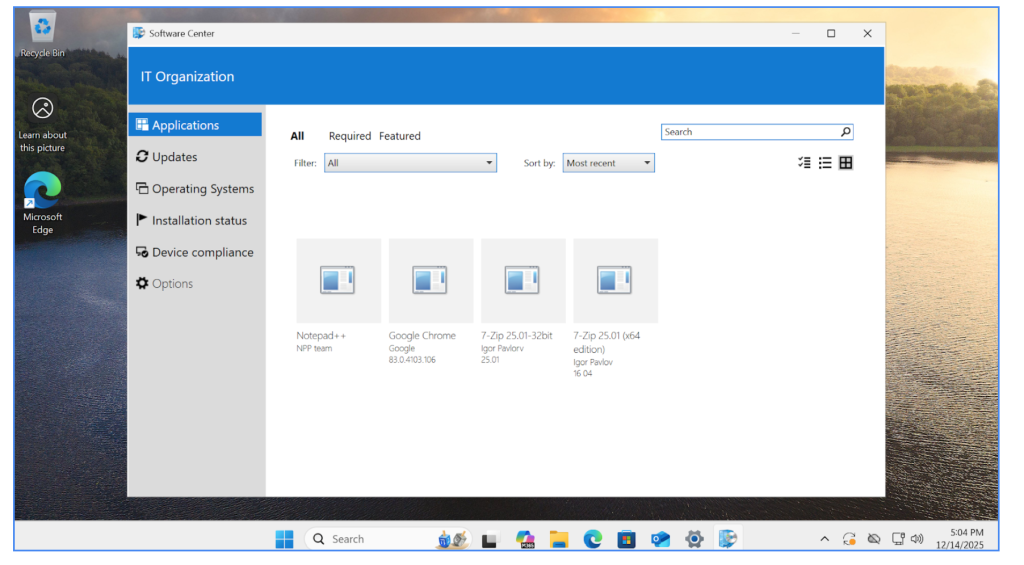
This screenshot shows the Software Center on a Windows computer. Software Center allows users to install applications that are deployed by IT through SCCM. It displays available software such as Notepad++, Google Chrome, and 7-Zip. This confirms that the applications were successfully deployed and are available for users to install.